Start a role-play
SCL is normally opened from a learning platform or another host application. There is no separate learner sign-in inside SCL: the host selects the exercise and passes the learner’s existing access token to the embedded experience.
Before you begin
You need:
- A valid launch supplied by the host platform.
- A current browser with JavaScript, WebSocket, and WebRTC support.
- A working microphone and audio output device.
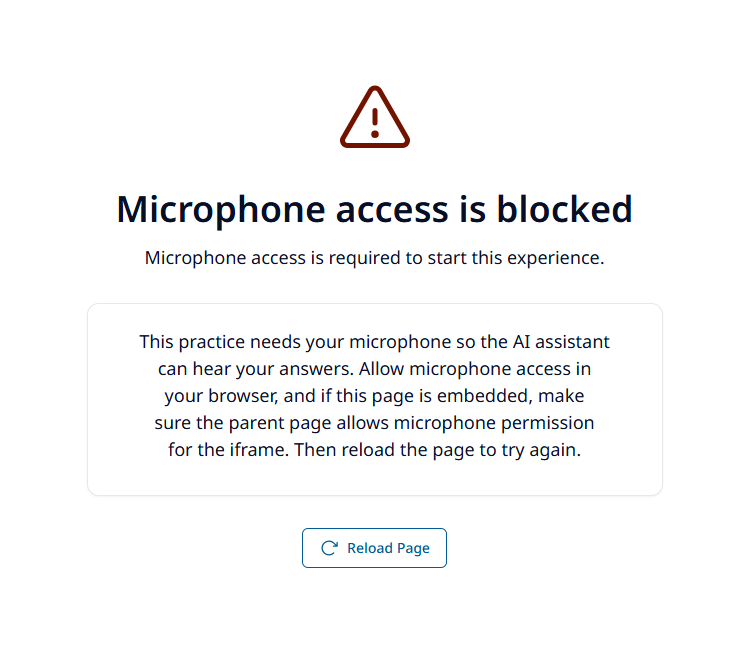
- Permission to use the microphone in both the browser and the host iframe.
- A stable network that can reach SCL, its APIs, and the configured SCAI voice service.
A headset usually produces clearer audio and reduces echo.
Complete the experience
1. Understand the scenario
The briefing explains who you will speak with, why the conversation is happening, what you should achieve, and how long the exercise lasts. It can also show challenges, practical tips, target skills, competency level, and the simulated customer’s profile.
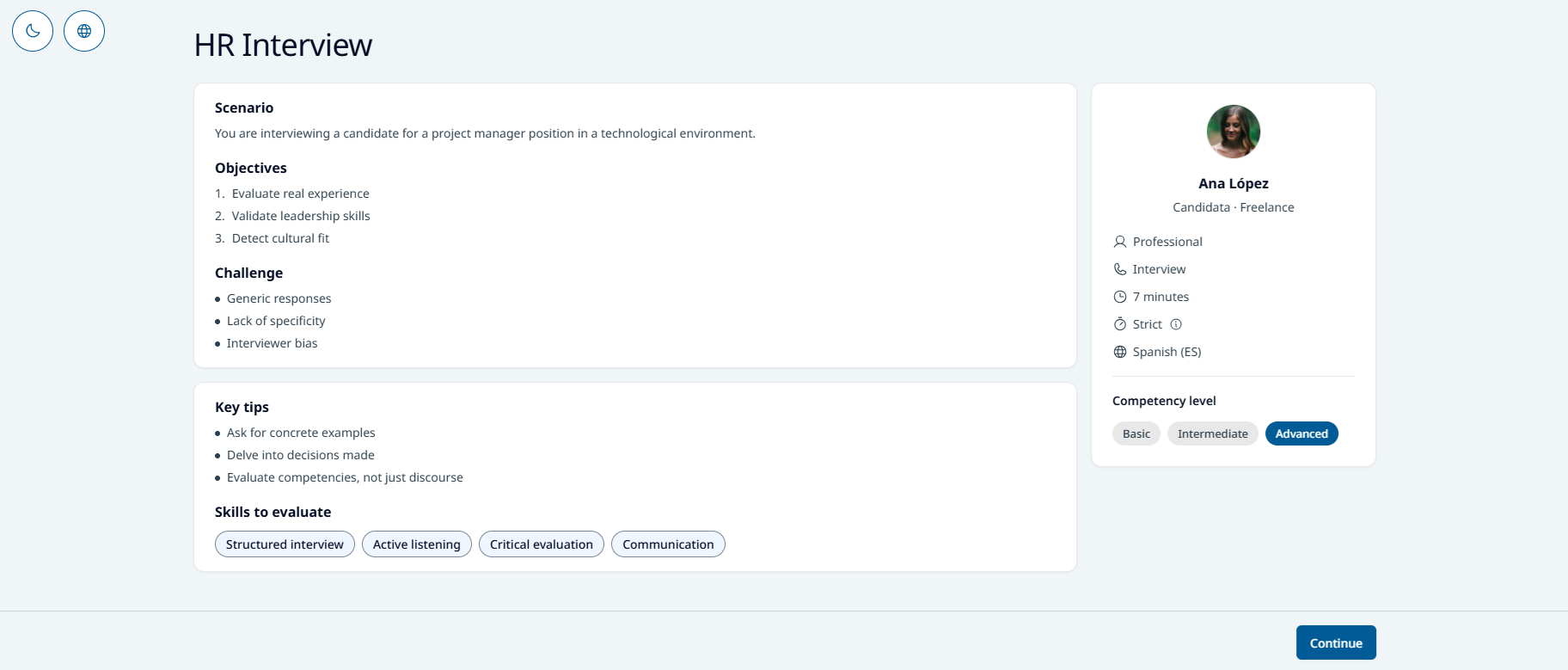
Content varies by role-play. If an optional section was not authored, it is not shown.
2. Prepare your call
The introduction summarizes how the voice experience works. Check your audio devices before selecting Start. The browser asks for microphone access when the call is being established.
3. Conduct the conversation
Speak naturally and respond to the simulated customer as you would in the target situation. During practice you can:
- Mute or unmute your microphone.
- Follow the live transcript.
- Open contextual help when it is available.
- Monitor elapsed time and time-limit warnings.
- Finish the conversation or cancel the attempt.
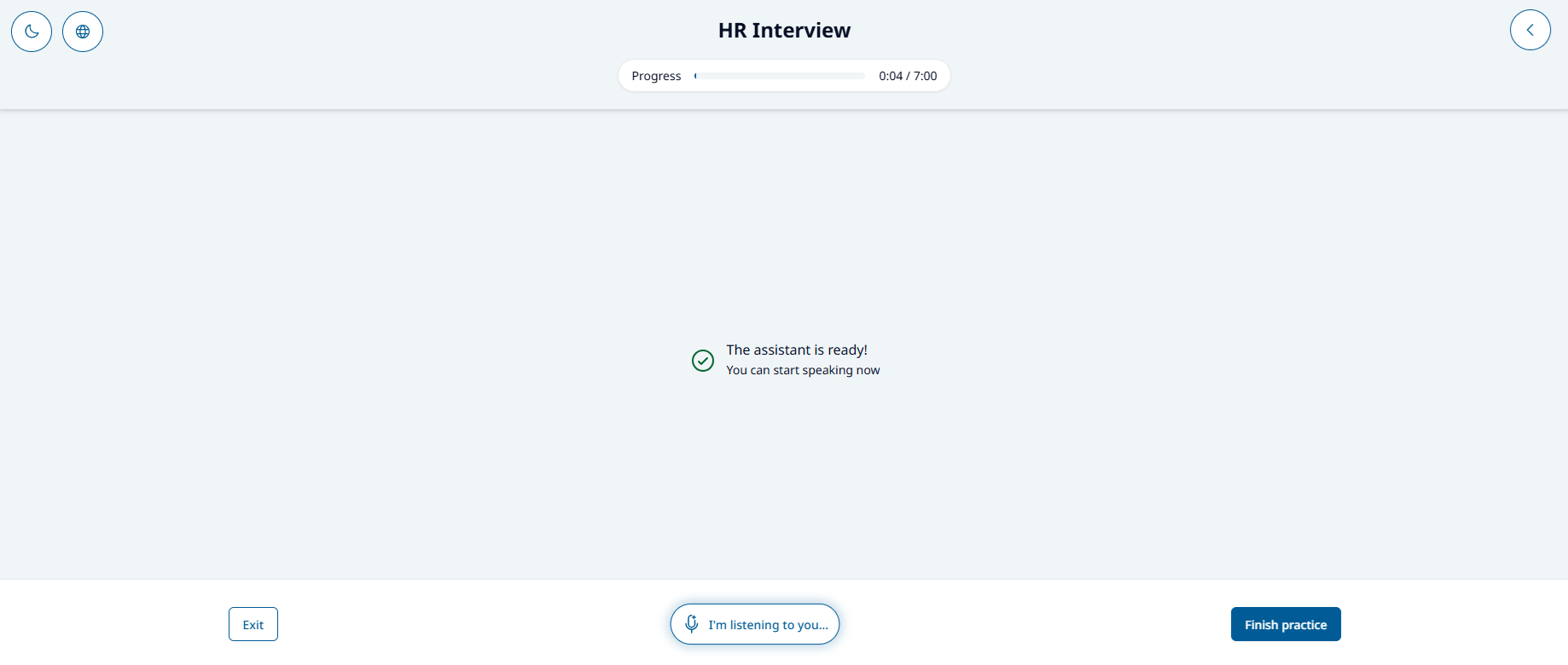
The active timer starts only after SCAI accepts the call. Cancel returns to the briefing without evaluation. Finish, a strict deadline, or the flexible overtime limit ends the attempt and lets you continue to feedback.
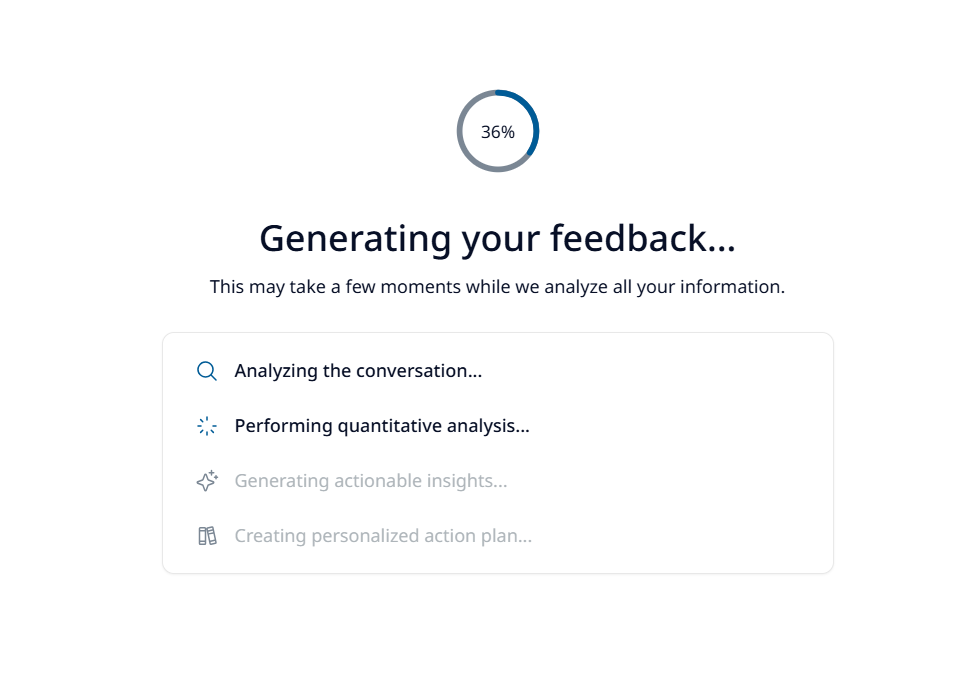
4. Learn from the feedback
SCL evaluates the transcript against the criteria defined for that role-play. A successful evaluation contains a 1–5 overall score, a concise description, and criterion-level performance indicators. It can also include strengths, improvement opportunities, an action plan, and recommended learning.
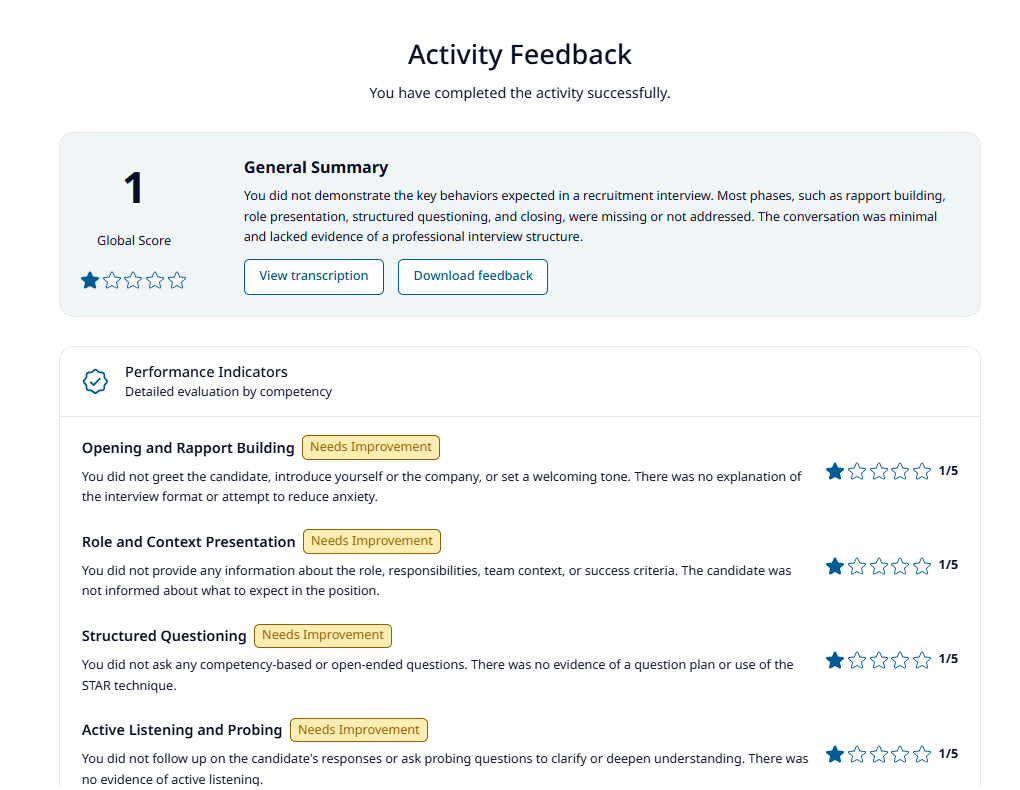
Use the transcript to connect the feedback to what was actually said. You can print the feedback or save it as a PDF through the browser, then start another attempt from the introduction.
Completion in the host platform
Some role-plays report completion to the parent learning platform after a successful evaluation. This happens in the background and depends on the role-play configuration and identity claims supplied by the host. Seeing feedback confirms that evaluation succeeded; it does not by itself confirm that the external platform has recorded completion.
If the session cannot start
Check the launch, microphone permission, audio devices, and network connection. The most common causes and recovery steps are listed in Troubleshooting.
Direct access shows a manual token form intended for development and integration testing. It is not the normal learner authentication flow.